I have a lot of software decision paralysis happening, but the one consistent bit of software I’ve stuck to for years has been MusicBee. While in the grand scheme of things, it’s not as important as, say, a photo editor or CAD software, it represents my love for music in a way that no other player ever does.
MusicBee is a freeware music library player and organiser for Windows. I call it “iTunes on steroids”, because its interface is pretty similar to iTunes, but it has a lot of really cool organisational features that make browsing your music library (and especially one as large as mine, at 50,000 tracks) intuitive and fun to use. It’s basically a very advanced digital jukebox, there’s not really anything like it in my opinion, and it makes switching to another player really painful because you just don’t get the features that MusicBee has. It’s basically the only thing that ties me to Windows.
Some people ask me what it is about MusicBee that keeps me tied to it, why nothing else compares. This is intended to summarise the things I love about it.
The features I use
Playlists, with nested folders
Playlists are nice to have. Spotify has a leg up on Apple Music because people love sharing playlists through it. Though, the one thing I thought was a solved problem, whether from local players or streaming platforms, was the ability to have playlists that are nested in folders. There’s a lot of players that simply don’t do this for some reason. MusicBee does, by simply not reinventing the wheel and using the native filesystem to handle this. This means I can have my playlists nice and organised.
Customisable playlist views (+ custom tags)
This one I tend to not use as much as I’ve fallen out of love for Eurovision, but this can prove its usefulness in other ways and Eurovision just happens to be a great example for me right now.
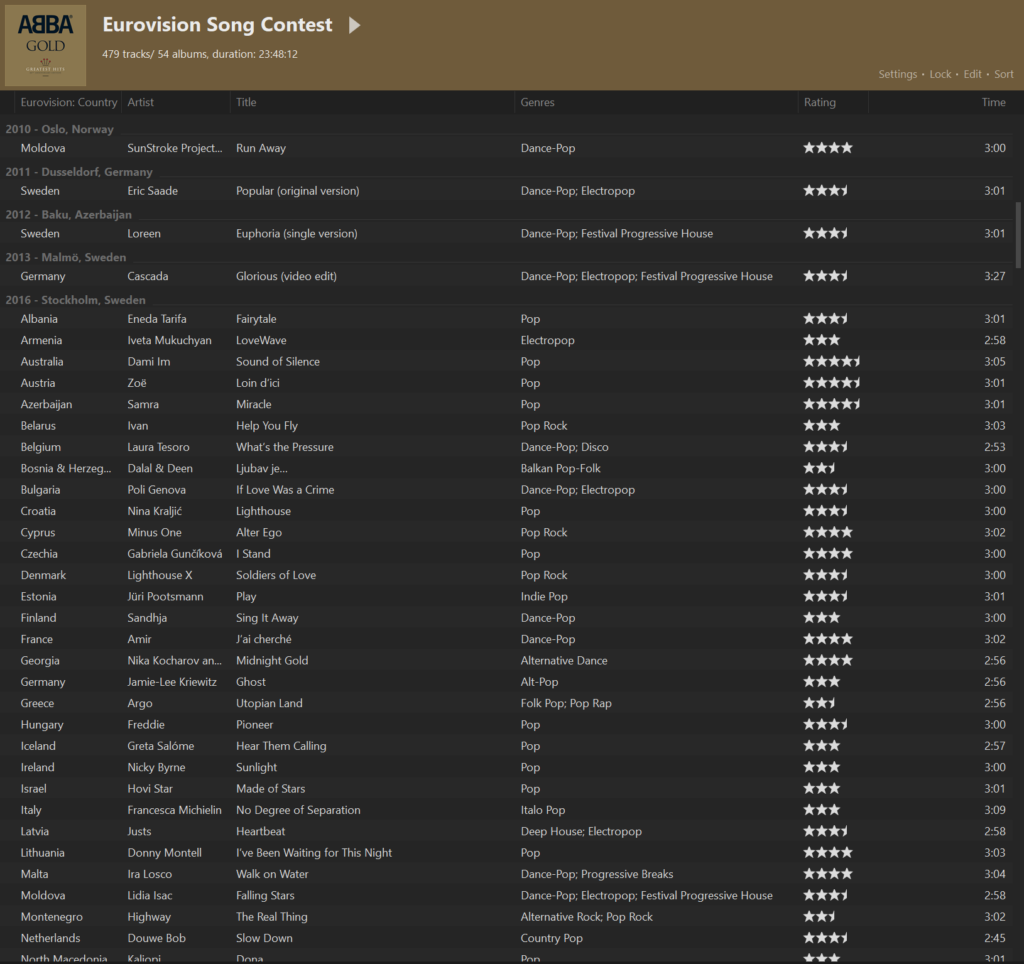
Playlists (as well as the library itself) can have different view types (ways to show the music in your library). You can have them shown as tiles of albums or artists, a jukebox-like UI, have the tracks listed alongside its album cover, or as a simple playlist table like above. They can also be sorted and grouped by whatever tags you have in your library. In the case of the Eurovision playlist, I have two custom tags (the contest year + host city, and the country the song and artist represented), and the Eurovision playlist uses these two, grouping by the contest year, then sorting by the representing country. This seems small, but it allows me to have a nice, interactive playlist of all the Eurovision music I have in my library.
MusicBee can also add these custom tags to your files directly, provided you add them in the custom tag settings. This allows other players, as well as tag editors, to read them, if they can.
Ratings
I use Rate Your Music a lot, and ratings helps me gauge how much I like or hate a song. Some people don’t like them – whatever, I do, and MusicBee pretty much maps really well to Rate Your Music’s condensed 10-star to 5-star rating system, even down to allowing releases to be rated.
Auto-playlists
Apple Music/iTunes users are familiar with Smart Playlists, these are playlists that automatically fill themselves based on a location you specify (e.g. music library, playlist, specific folder) as well as specific criteria. MusicBee does pretty much the same thing, and even bundles a “Top 25 Most Played” auto-playlist by default as an example. One playlist I have is “Dance-Synthpop”, which finds songs that are tagged both Dance-Pop and Synthpop in my library.
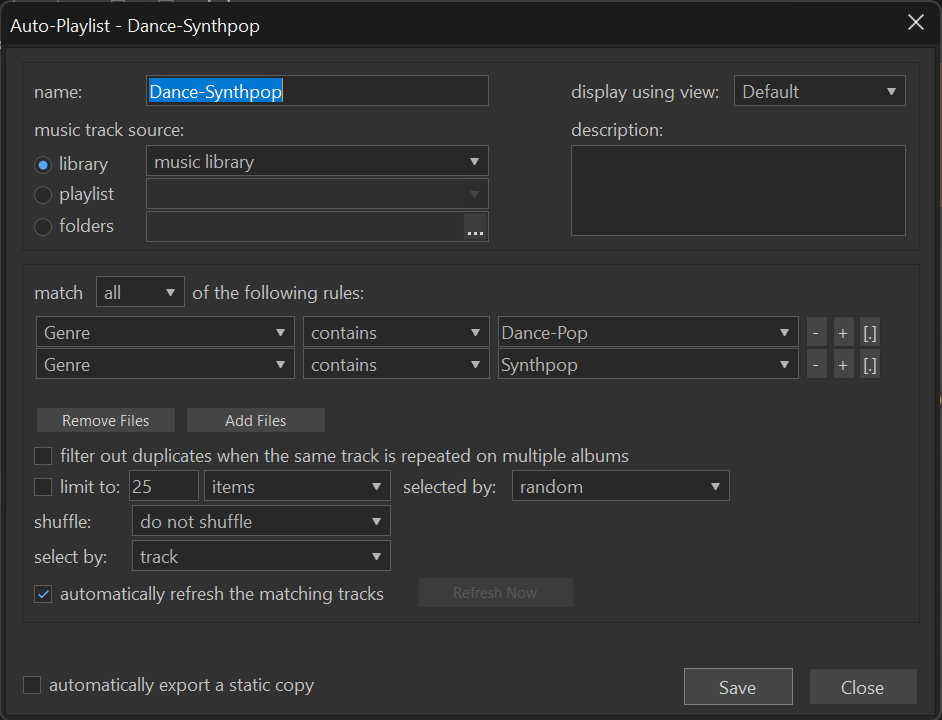
Auto-playlists can also have duplicates filtered out, be limited to a certain amount, and be shuffled. It’s basically like the Smart Playlists I mentioned earlier.
Library filters
MusicBee also allows for libraries to be filtered with the same criteria that powers auto-playlists. One filter I use basically filters out anything below 3.5 stars (or 7/10), so I have songs I know I’ve liked, and another is anything that’s not been rated yet. I’ve got a lot of songs I need to rate…
Inbox
MusicBee can send newly added tracks to an “inbox”, so you can check the tracks before they get added to the library. Since I use MusicBee for adding genre tags as its UX is better than your bog-standard tag editor for this (just having an autocomplete on the genre field alone), this is extremely useful to me.
Tag hierarchy templates
The one feature I love about MusicBee and the thing that ties me to it is the Tag Hierarchy Explorer. Using a simple text file as a template, you can have your library organised basically however you want. I maintain a weekly-updated template based on the genres and scenes & movements trees from Rate Your Music, and this essentially allows me to have my own little radio stations for whatever genre(s) in the tree that I want, based on the music I wanted.
This also works with playlists and filters, as well, and you’re not limited to genres, either. You’re not even limited to only the tags that MusicBee supports. Tag hierarchy templates also support custom tags, so you’re also allowed to use whatever tags you want for the tag hierarchy template once you’ve added them. Say you want to organise your library of video game music by the console it was made for. You could have a tree that looks like this:
By Bits
  8-bit
    Nintendo Entertainment System::console
    SEGA Master System::console
    ...
  16-bit
    SEGA Mega Drive::console
    Super Nintendo::console
    ...
It allows for an intuitive yet very customisable method of filtering and organising your music library. You could also have another part of the tree that only grabs Nintendo consoles, or even filter by the sound chip instead of the console, or use the Tag Hierarchy Explorer on a single playlist, if you wanted. It turns MusicBee from just a nice iTunes-esque music player to your own personalised digital jukebox, and is the thing that keeps me bonded to MusicBee.
I loved the idea of this so much that I even wrote an app to manage and export tag hierarchy templates using a database. This was my first major project in C# and Avalonia, which is lovely to write UIs with by the way.
The rotting Achilles’ heel
There is one glaring problem, however: MusicBee is absolutely showing its age. It’s built on the legacy .NET Framework and WinForms, which causes problems with newer technology like high DPI displays due to the use of WinForms, as well as an incompatibility with Linux that won’t be resolved until a rewrite or port to modern .NET happens. Writing a plugin for MusicBee with a user interface on it meant having to wrangle with WinForms and old C# versions, which I never, ever want to do again. It was fucking painful. For Linux users, running it on WINE caused a lot of issues in Wayland in particular, given that WINE treats everything like it’s a separate window, including tooltips! It’s workable, but it’s not great, and if you’re like me and predisposed to easily being annoyed when a glitch happens, then yeah. This sorta thing can stick you to Windows, and makes backwards compatibility a notable curse.
I’m looking at making my own MusicBee
I’ve been toying with the idea of making my own Great Value MusicBee, in C# and Avalonia, to support use cases that I personally want. C# is just the language I know at the moment, and Avalonia is my favourite UI toolkit right now as well. It’s not just tag hierarchies I want, but also first-class MusicBrainz support. MusicBee also isn’t great for those who use MusicBrainz, and when I developed my MusicBrainz Sync plugin I had to basically use a separate tagging library independent of MusicBee to retrieve those tags from the file’s metadata. The library I’ve been messing with for that project supports custom tags, so I’m basically using its Track object as the lower-level object, and abstracting it to a high-level object. Cross-platform use is something I want to work on too, as Mac doesn’t really have a MusicBee equivalent either. There are no promises here, but I do chip away at this when I have the time and motivation.